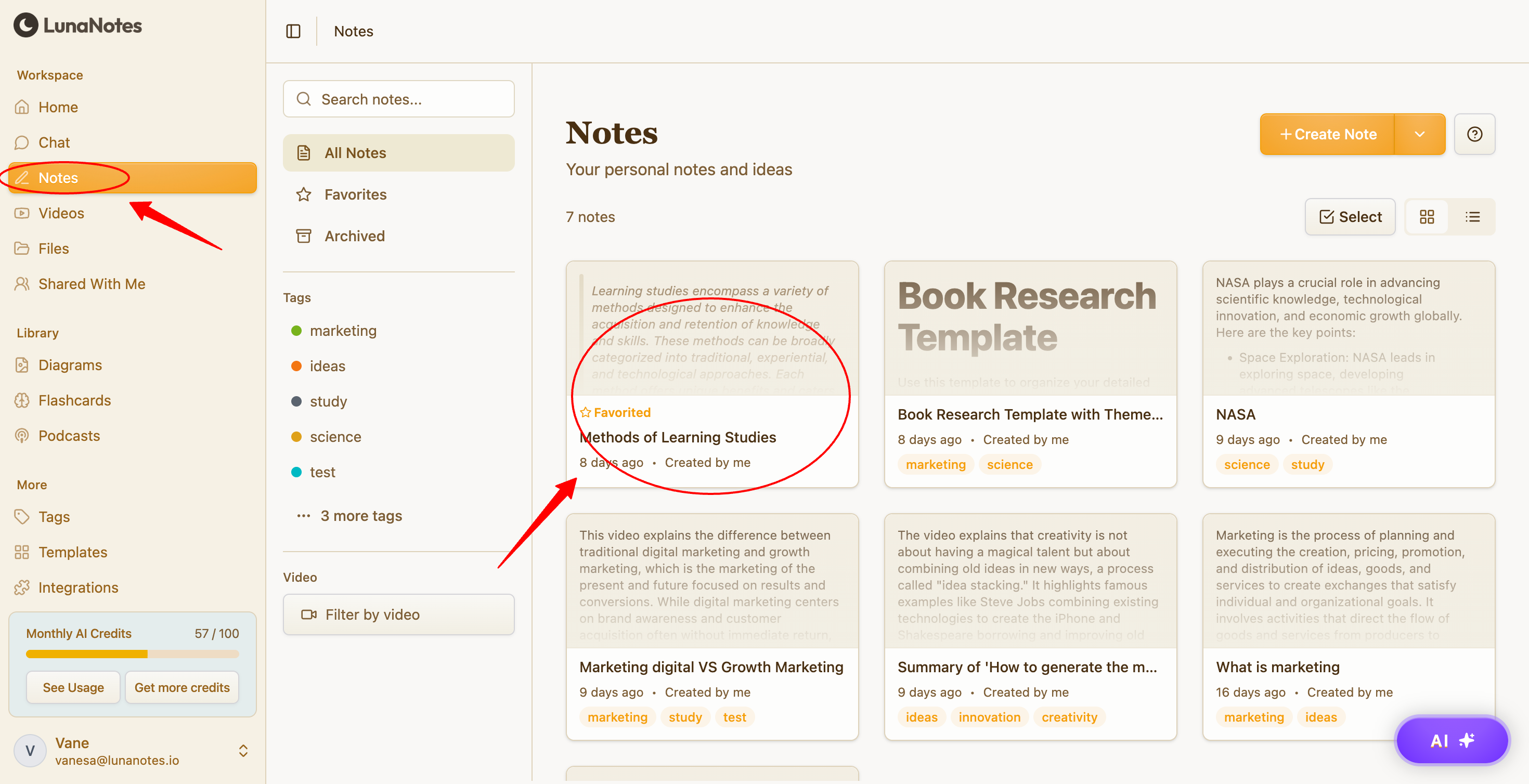
1. Open the note or file
-
Go to Notes or Files.
-
Open the note or file you want to share.
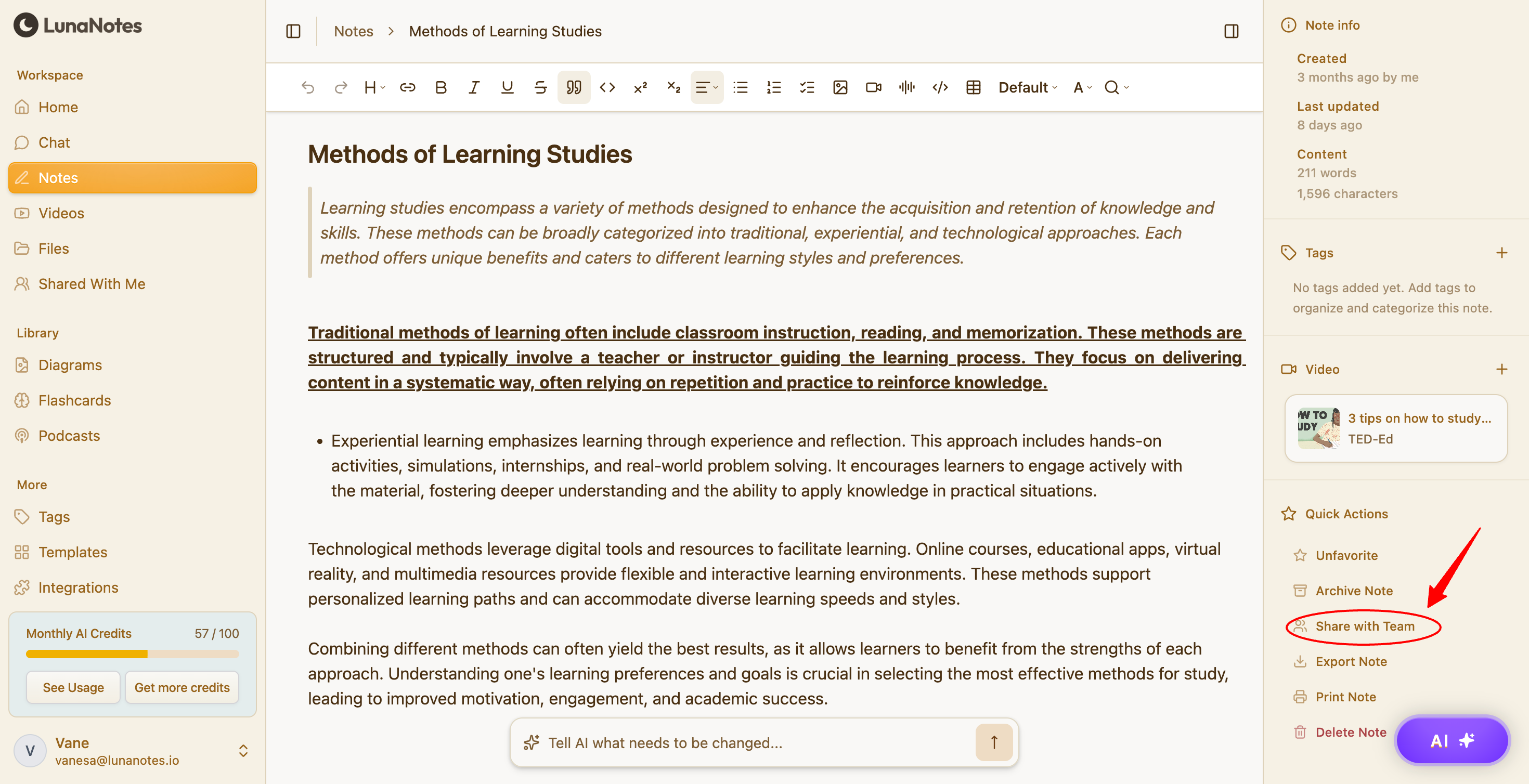
2. Share with a team
-
Click the Share option.
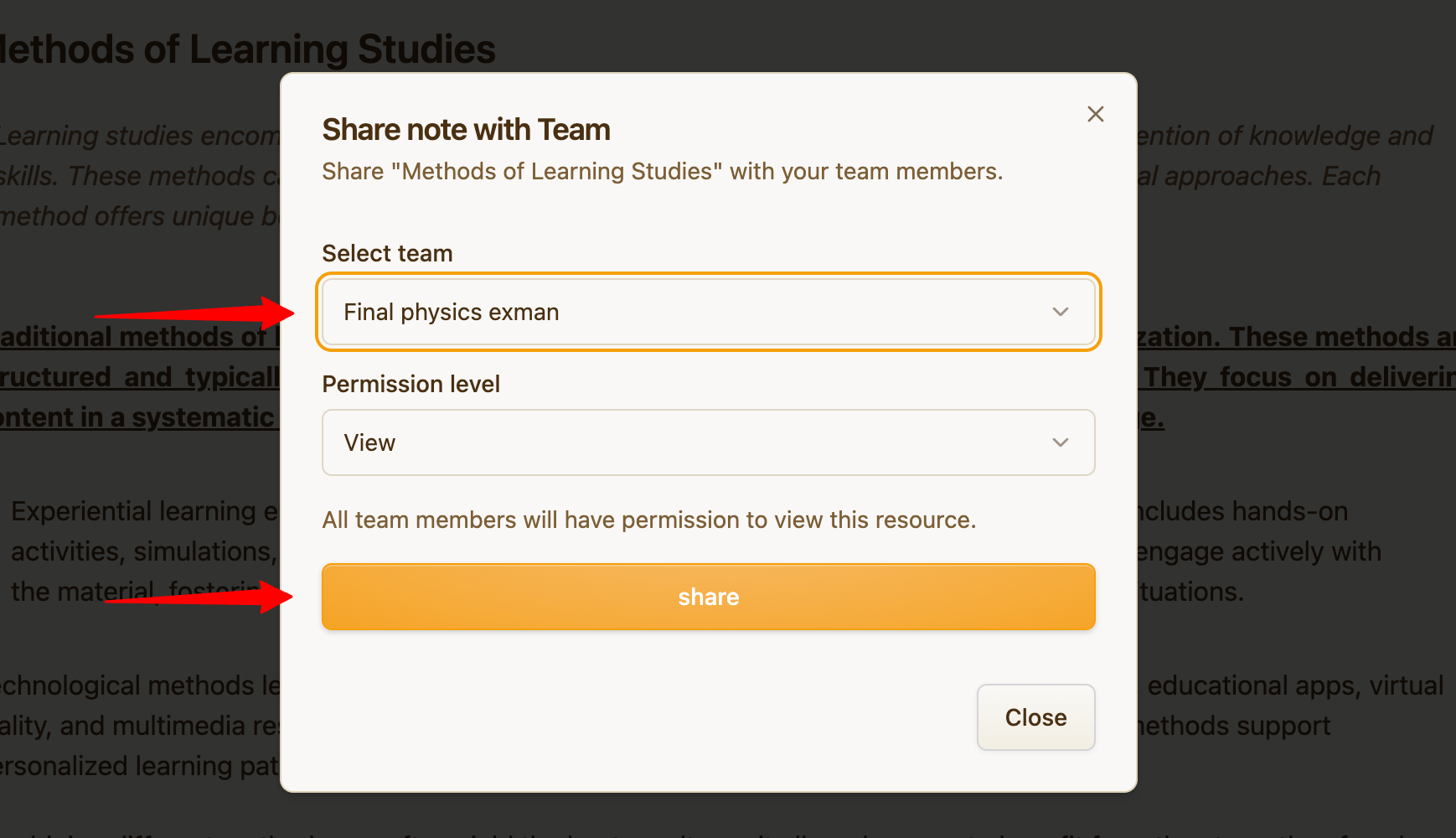
-
Select the team you want to share with.
-
Confirm the action.
The note or file will be shared with all team members.
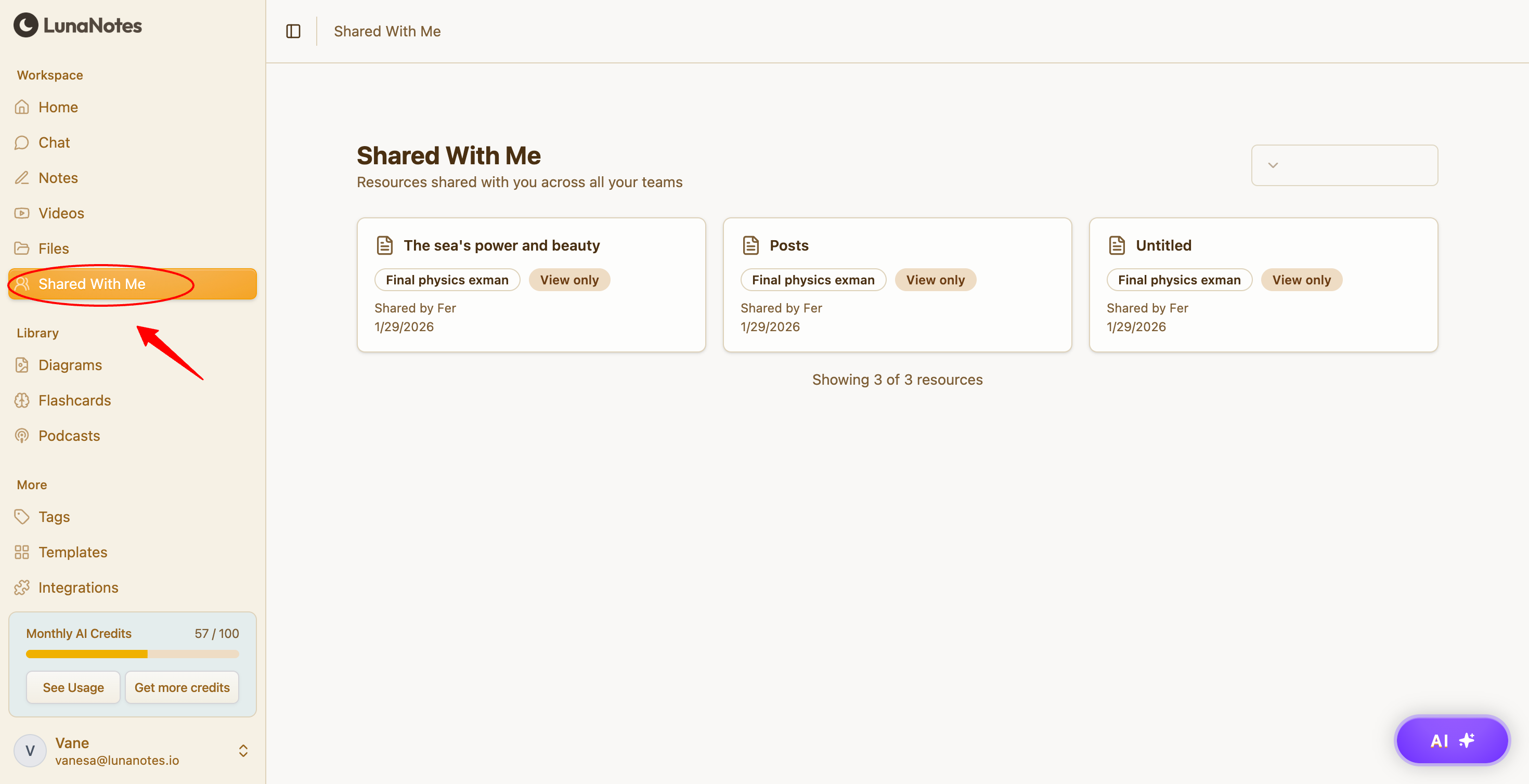
3. Where shared notes appear
Shared With Me
Notes shared with you by a team appear automatically in Shared With Me.
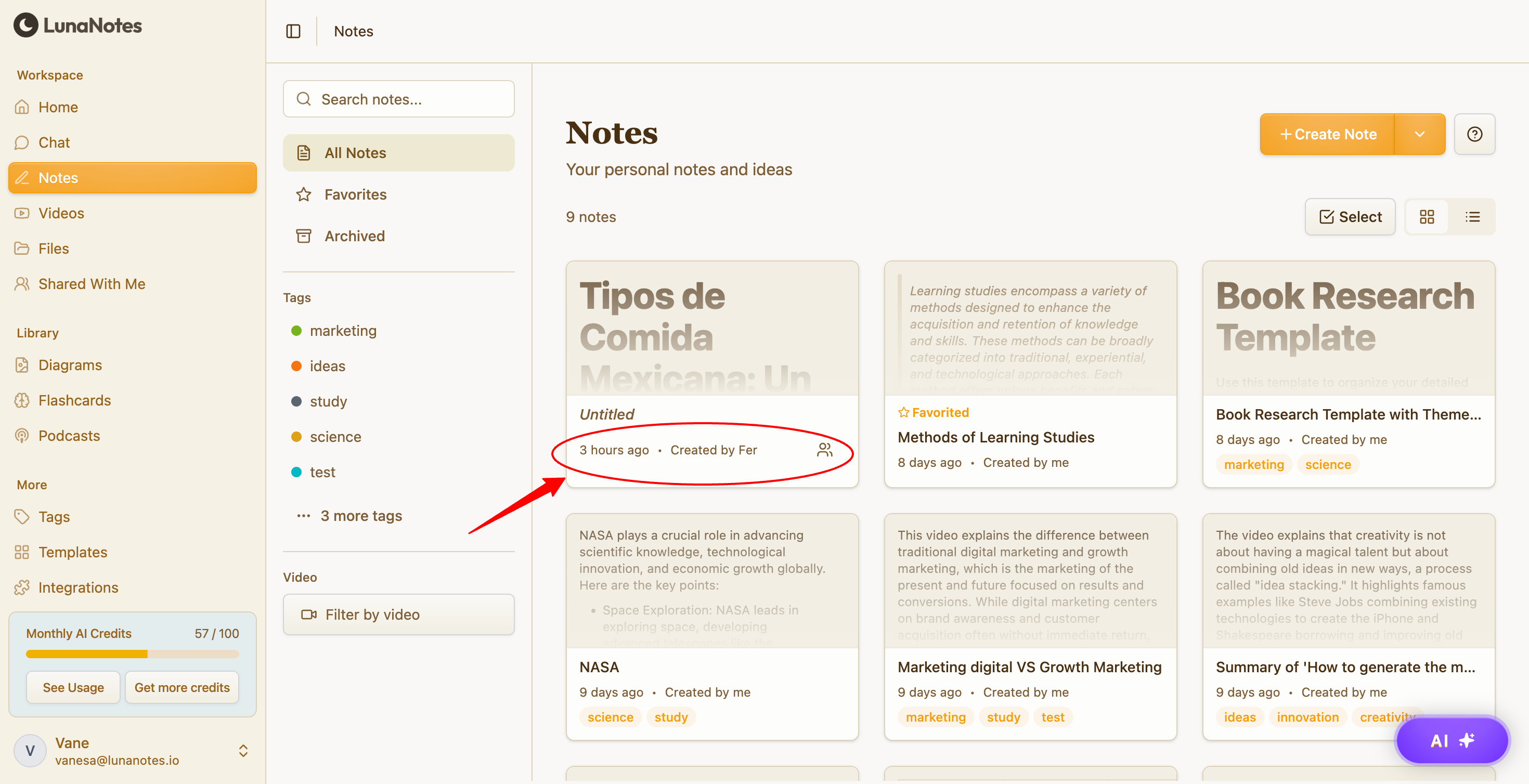
Notes view
Shared notes are also visible in your Notes list.
They include a visual indicator showing they are shared with a team.
4. Access and permissions
-
Team members can view shared notes and files.
-
Editing permissions depend on team settings and your plan.
-
Shared notes do not affect your private notes.