-
Log in to your account at app.lunanotes.io
-
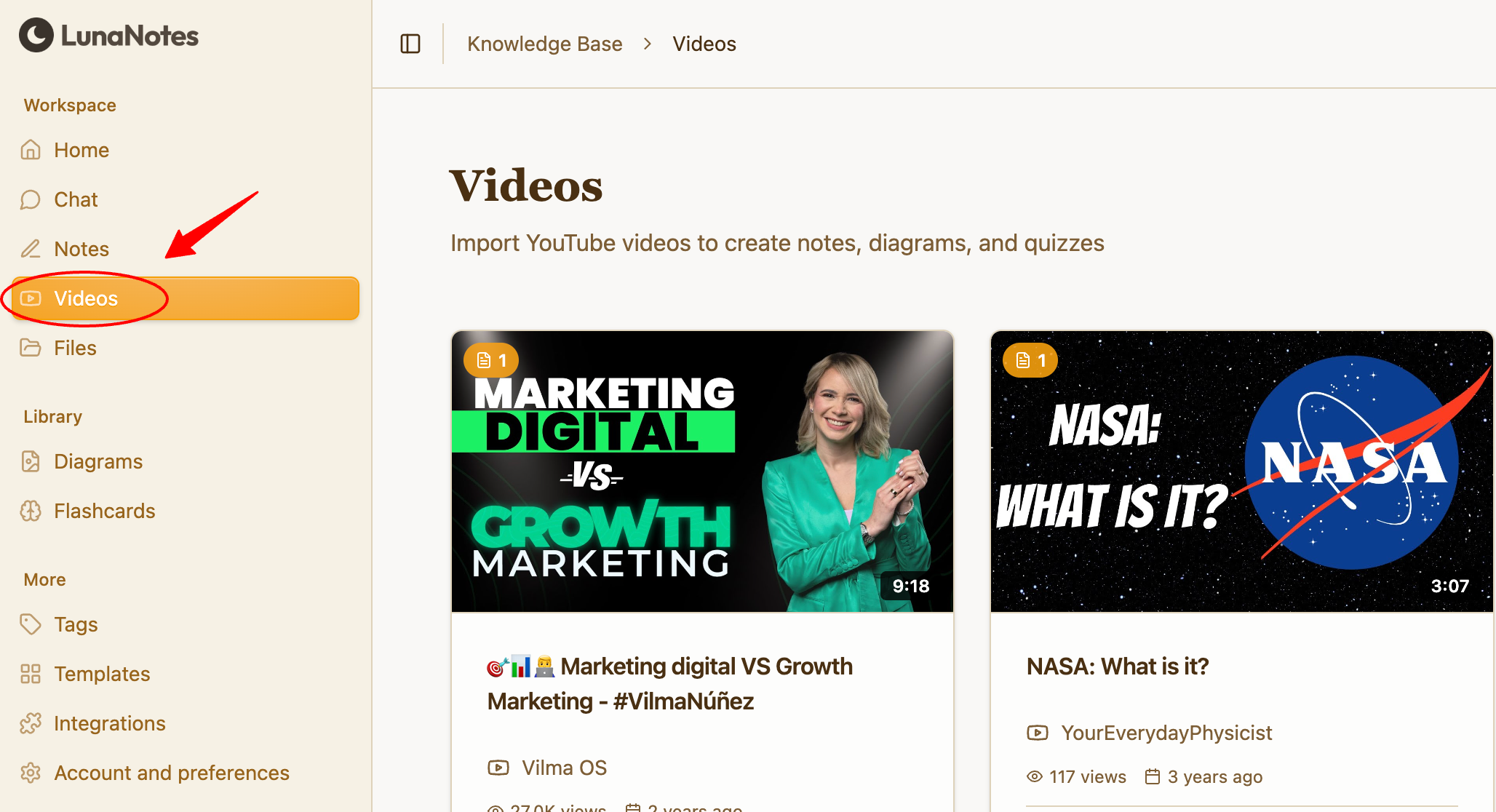
In the left sidebar, click on Videos.
-
Open a YouTube video that you’ve already imported or paste a YouTube URL to add a new video.
-
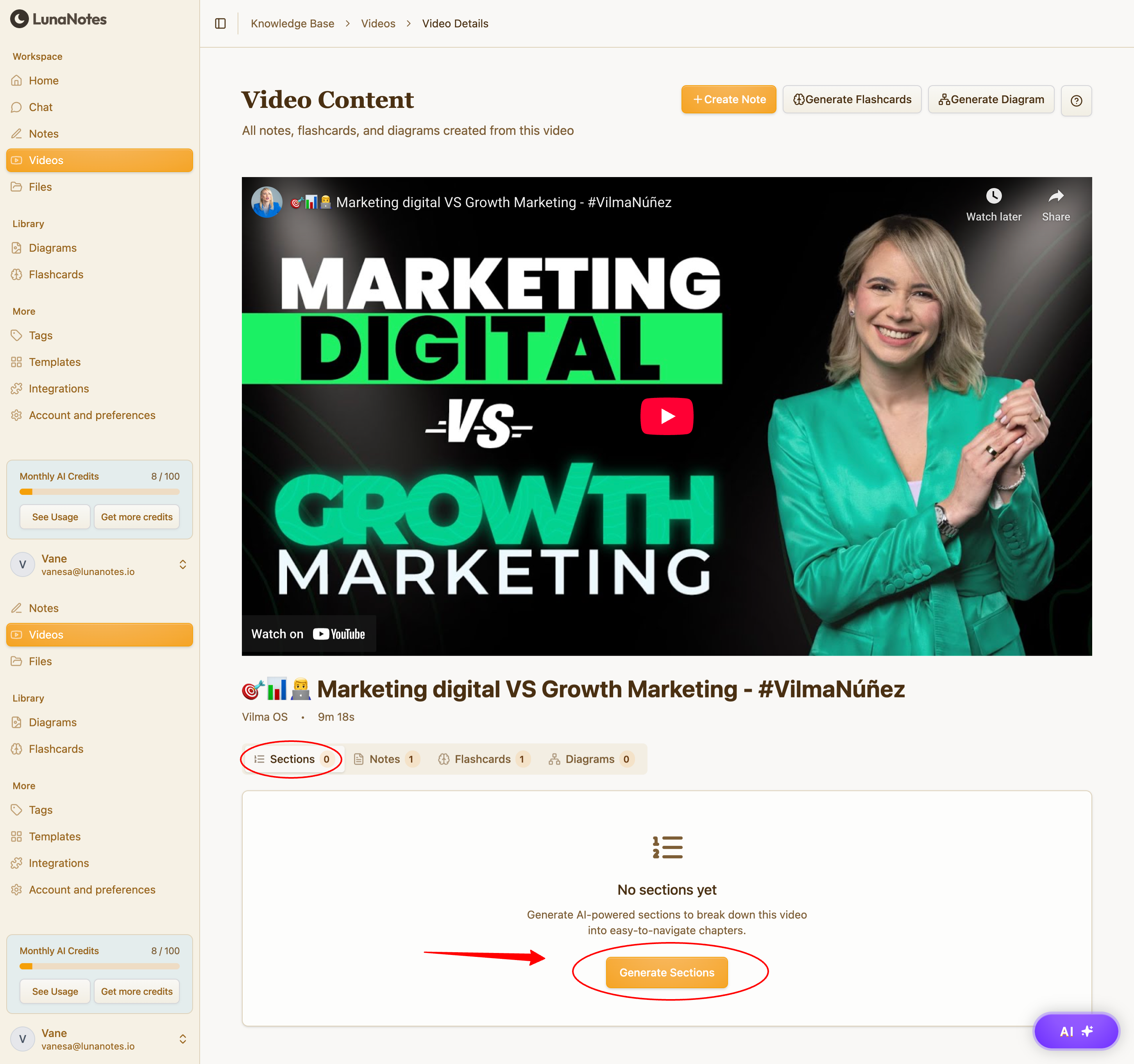
Once the video is loaded, locate the Generate Sections option in the video tools panel.
-
Click “Generate Sections.”
LunaNotes will analyze the video content and transcript automatically.
-
Wait a few seconds while the AI processes the video.
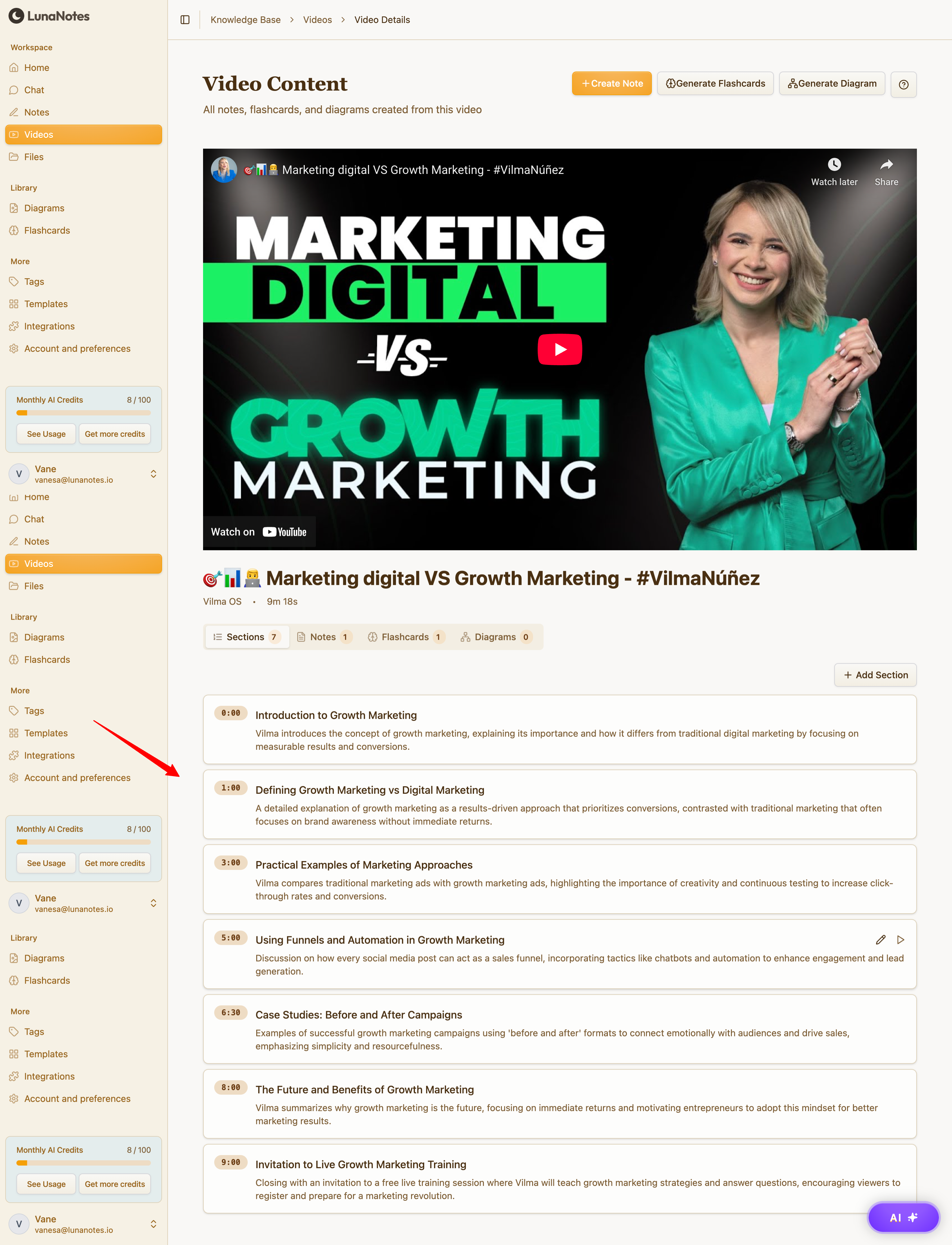
The video will be divided into structured sections, each one including:
-
A clear title
-
A timestamp linked to the exact moment in the video
-
-
Use the generated sections to navigate the video more efficiently.
Clicking on a timestamp will take you directly to that part of the video.
💡 Tip:
Generated sections with timestamps are especially useful for long videos, lectures, and tutorials—helping you review and navigate content much faster.