-
Log in to your account at app.lunanotes.io
-
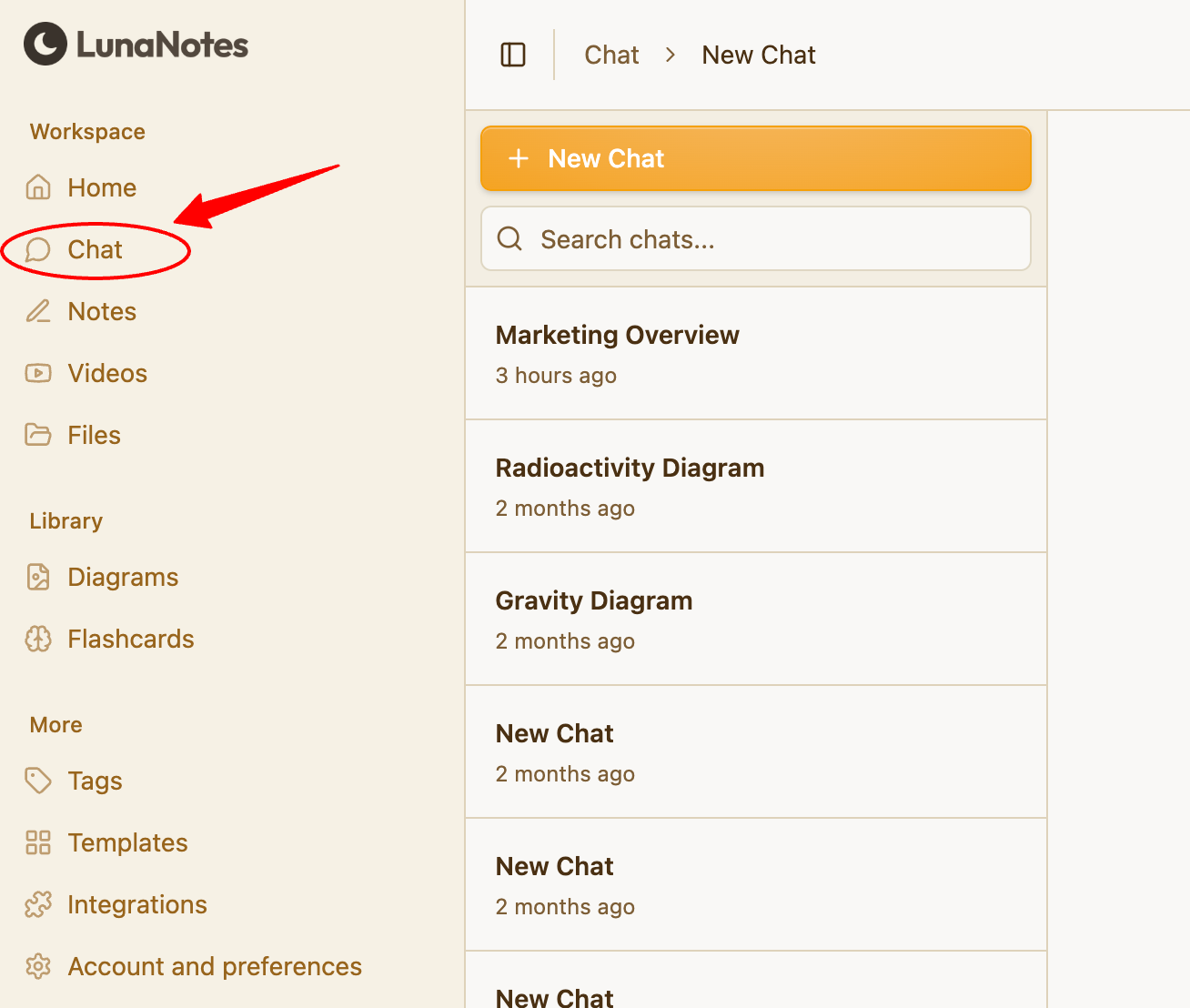
In the left sidebar, click on Chat to open the AI Chat section.
-
Click New Chat to start a new conversation.
-
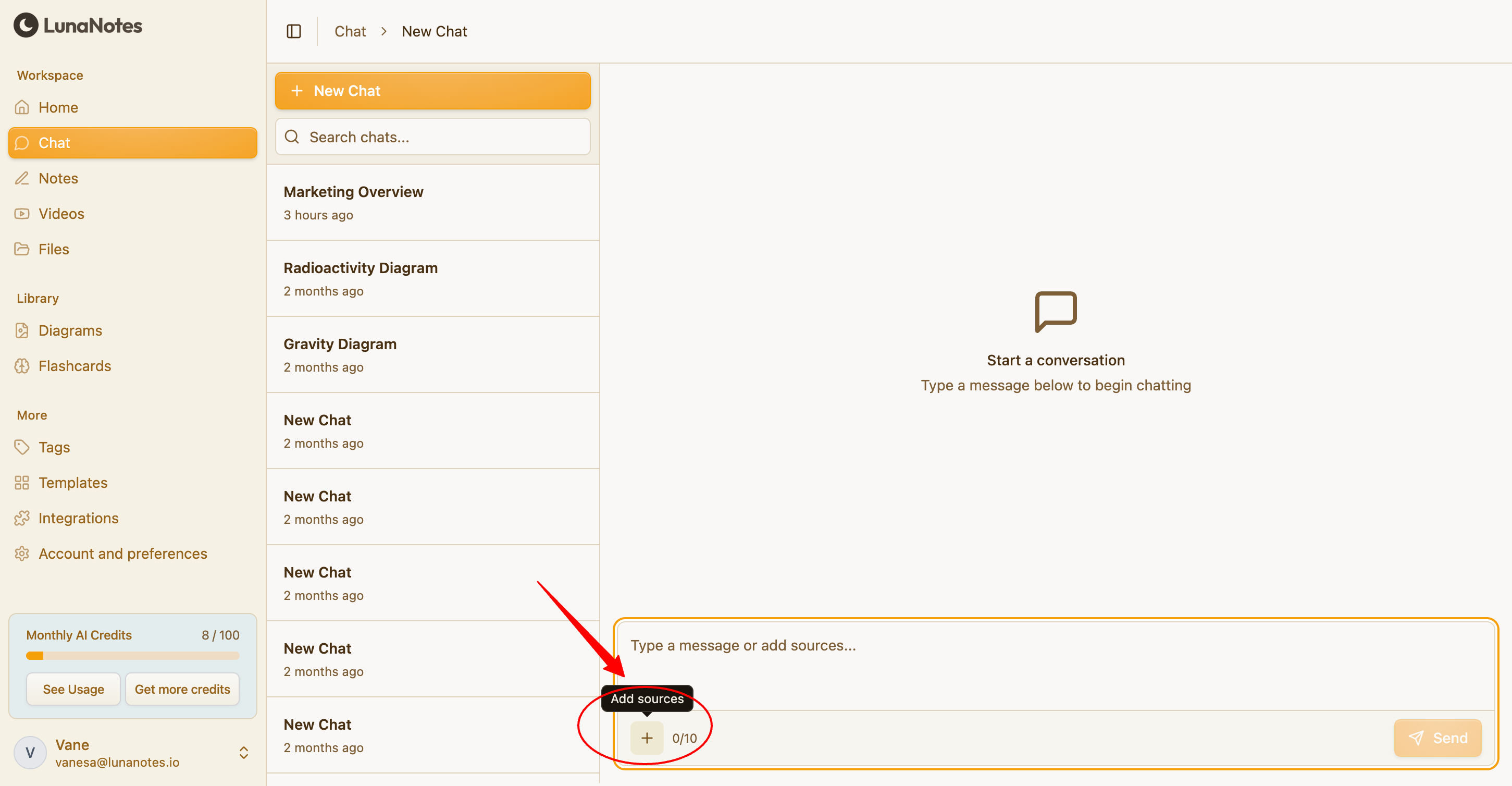
In the chat input area, click the + button to open the file options menu.
-
Upload a file by selecting “Upload files.”
You can upload documents such as PDFs or other supported files from your device. (Example: Add from Notes, Add from Videos, Add from Knowledge Base, Upload files.)
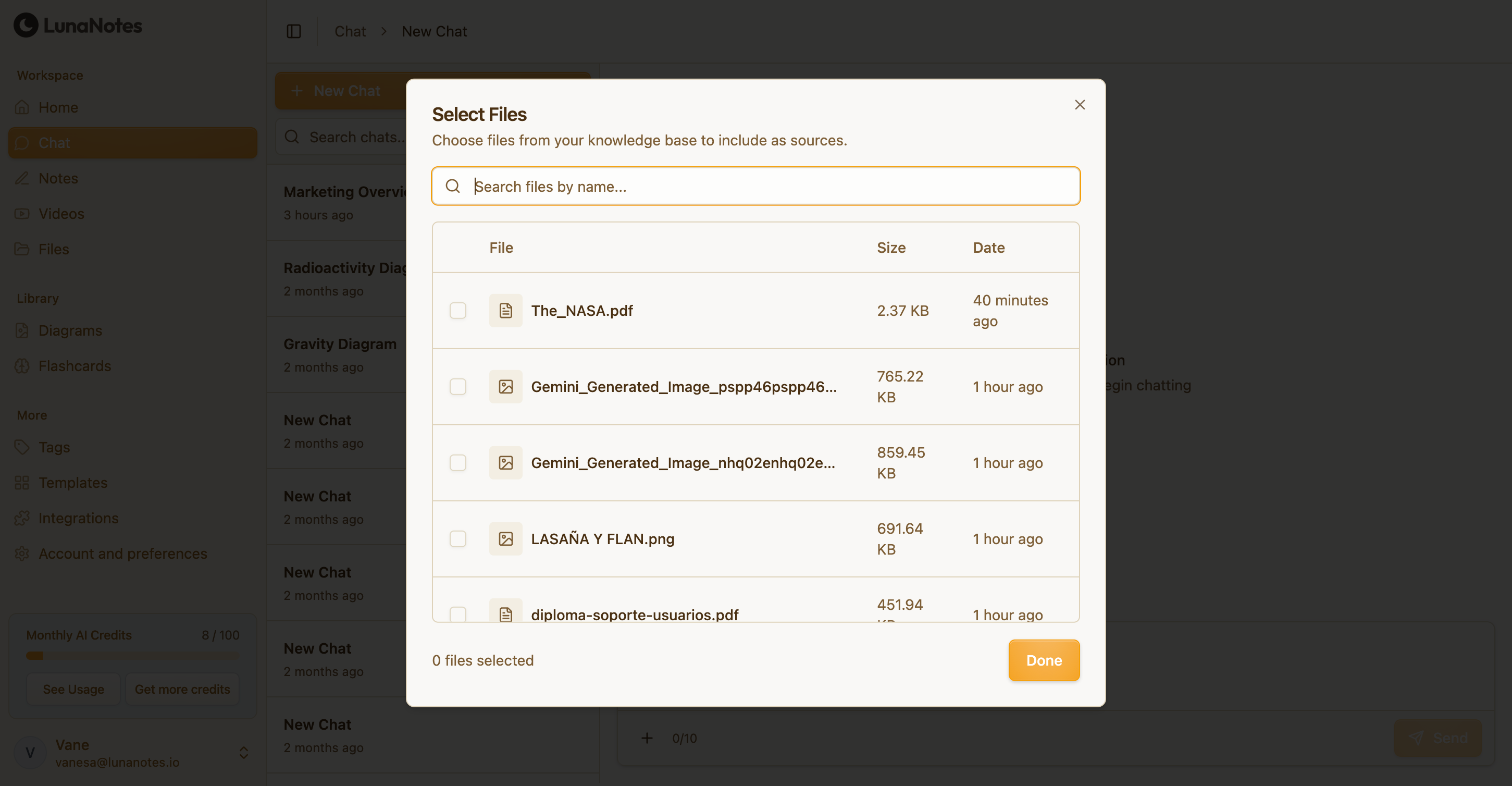
-
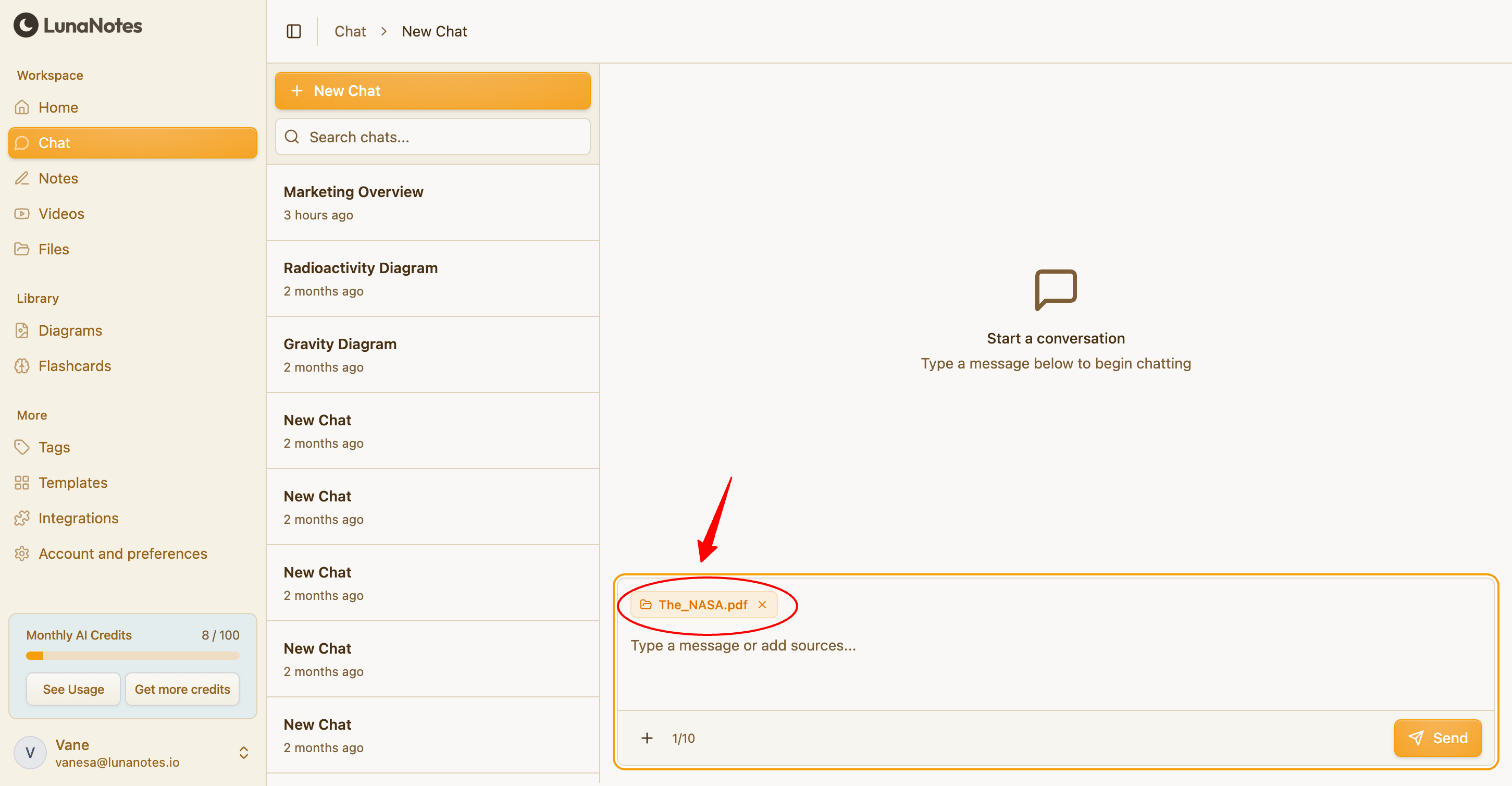
Once uploaded, the file will be attached to the chat context.
The AI will automatically use the content of that document as its main knowledge source for the conversation.
-
Start chatting by typing your question or request.
The AI will respond based on the information inside the uploaded file.
Examples:
-
Ask for a summary of the document
-
Request an explanation of a specific section
-
Generate ideas, insights, or action items based on the file
-
Ask questions that are fully grounded in the document’s content
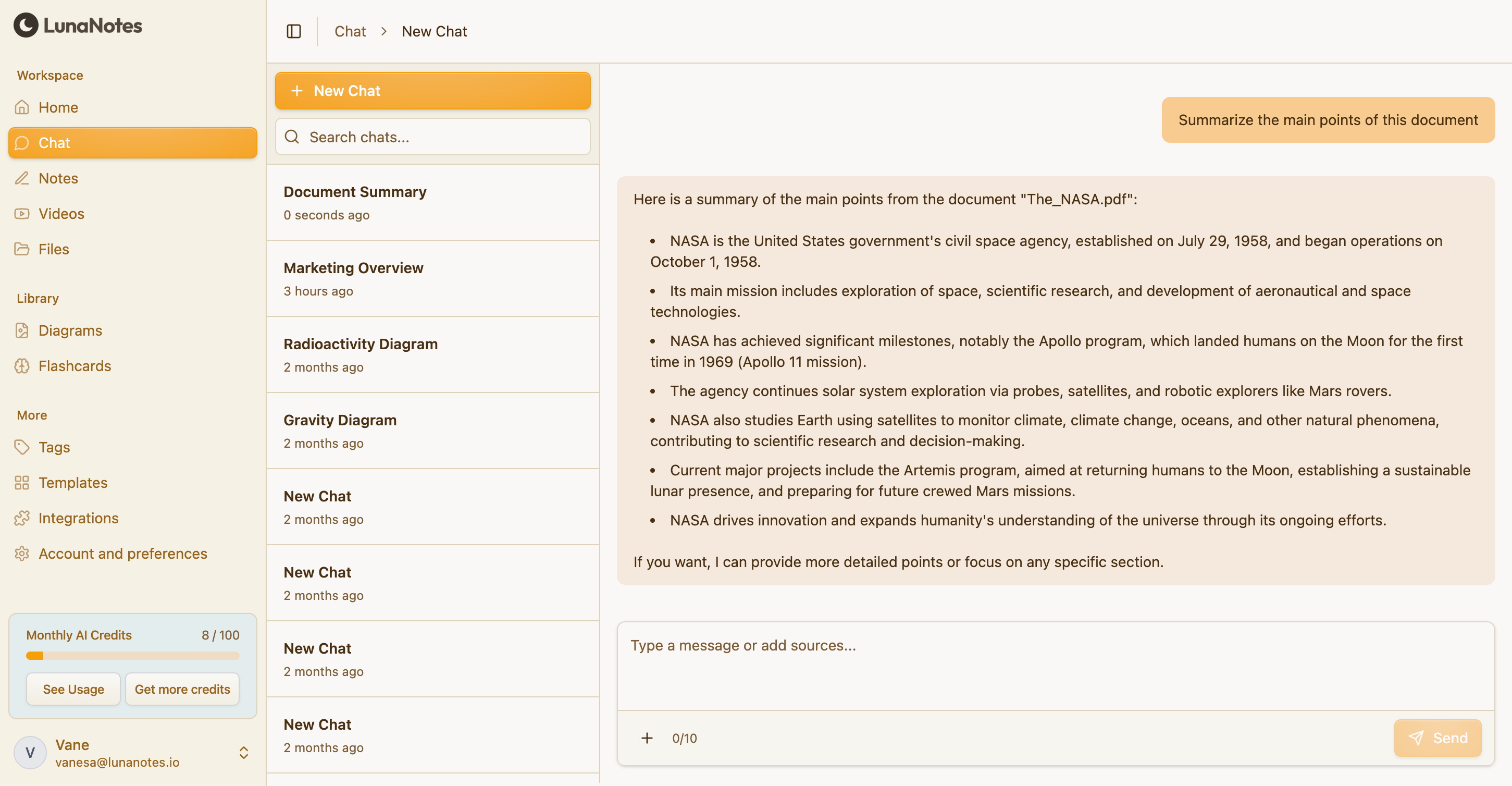
-
-
Continue the conversation to dive deeper into the same document.
The chat will stay focused on the uploaded file unless you add more sources.
💡 Tip:
You can upload multiple files to the same chat to give the AI more context, or start a new chat if you want to focus on a different document.