-
Log in to your account at app.lunanotes.io
-
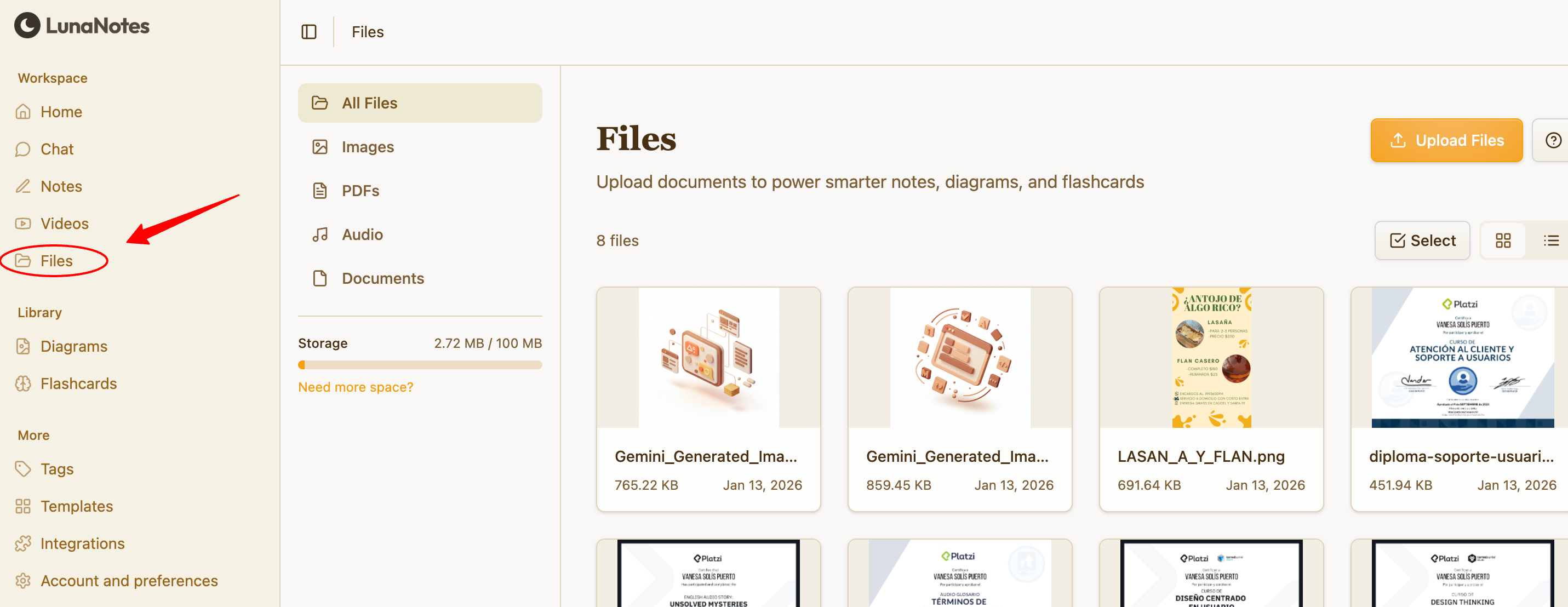
In the left sidebar, click on the Files section.
This will open your file library, where all uploaded files are stored.
-
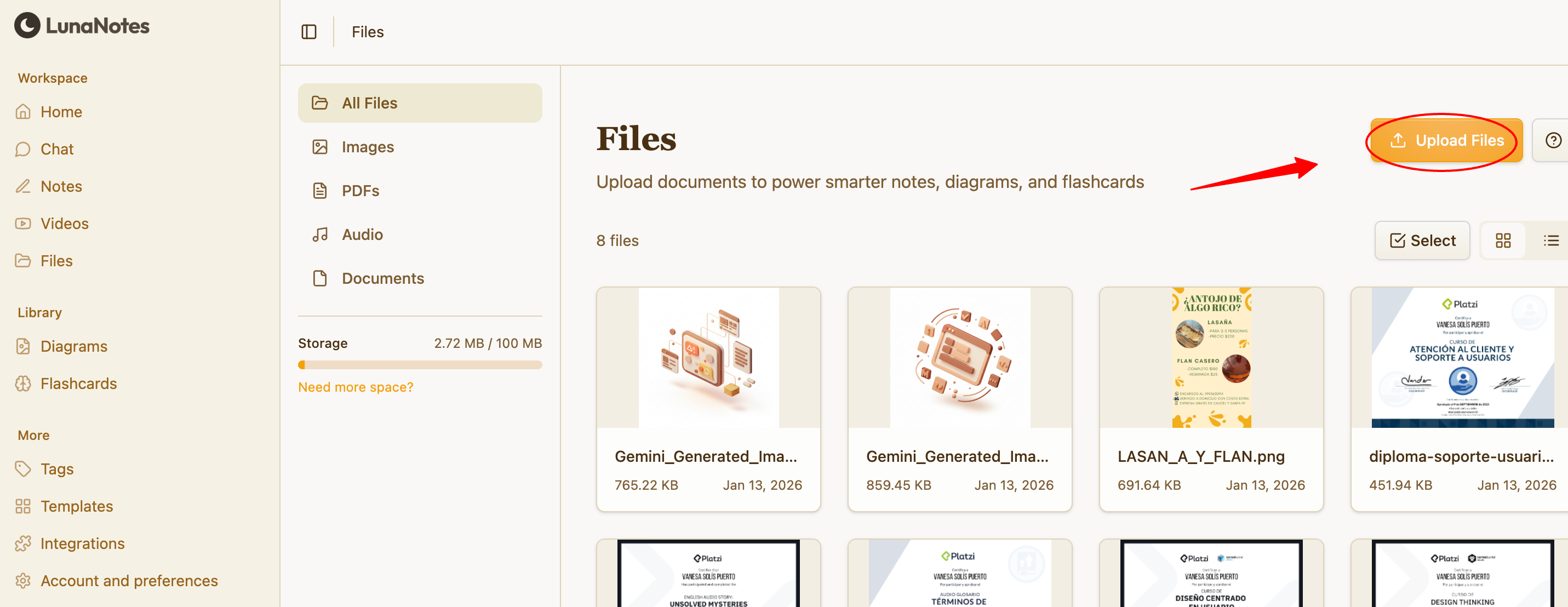
Upload a new file by clicking the Upload button.
You can upload documents (like PDFs) and images from your device.
-
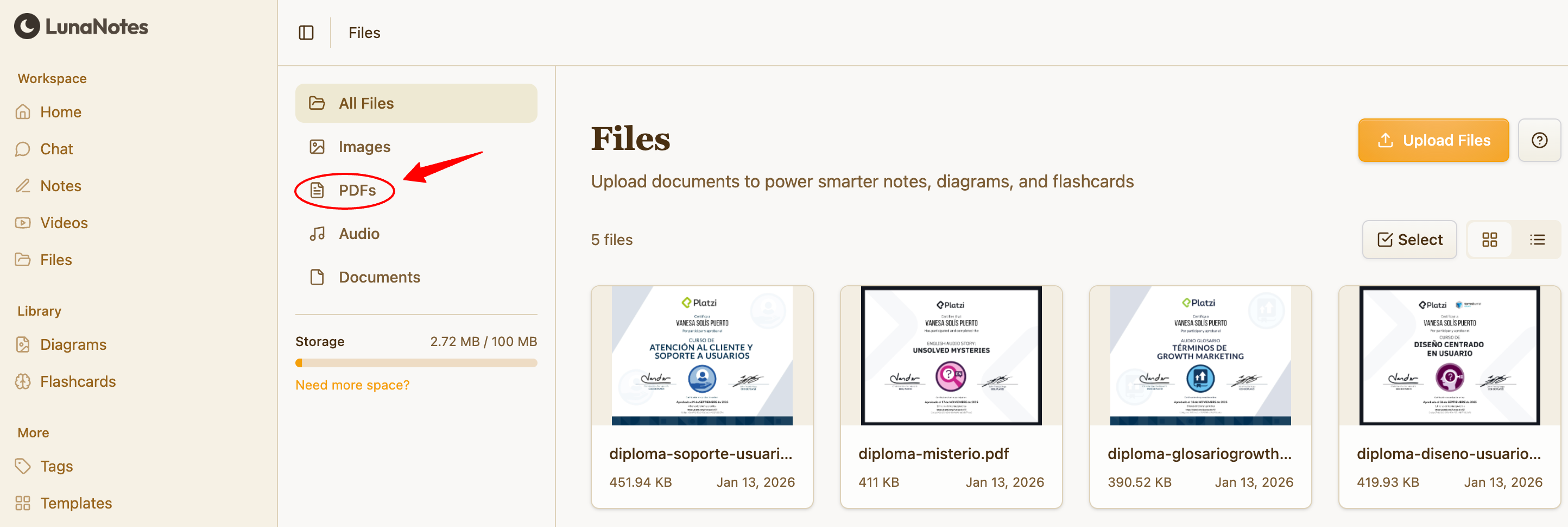
Filter files by type to quickly find what you need.
Use the filter options to view only specific file types, such as:
-
PDFs
-
Images
-
(Other supported formats, depending on what you’ve uploaded)
-
-
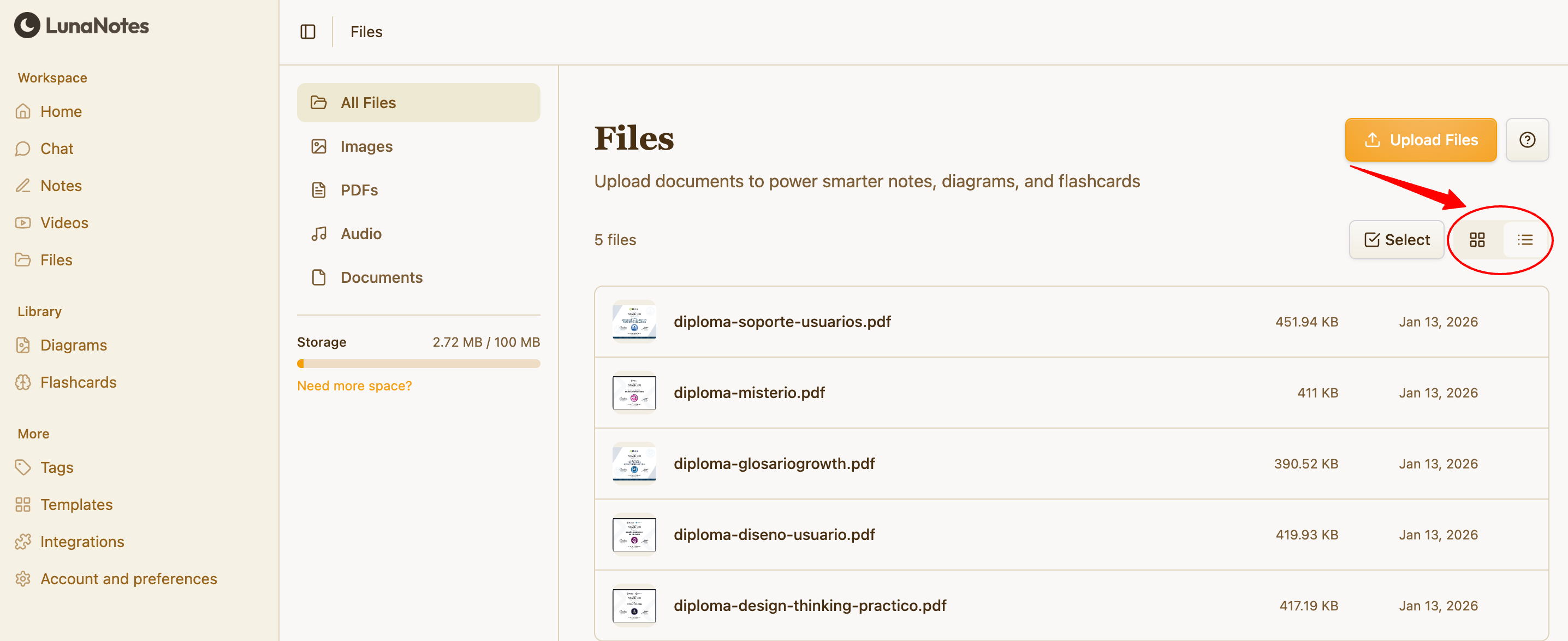
Change the display mode to control how files are shown.
You can switch between:
-
Grid view (files shown in boxes/cards)
-
List view (files shown in a line/list)
-
-
Open a file by clicking on it.
The file will open in the viewer so you can preview it.
-
Manage your files from the Files section.
Keep your workspace organized and access your uploaded materials anytime.
💡 Tip:
Use file type filters + grid/list view together to browse faster, especially when your library grows and you have many PDFs and images.